Creating Human-Made Cover Art with Canva

8 posts
User avatar
Gender Female
Points 24804
Reviews 532
Image

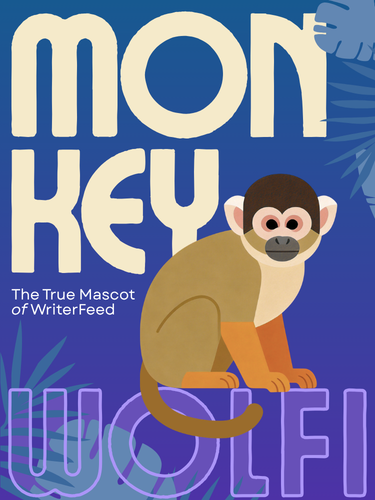
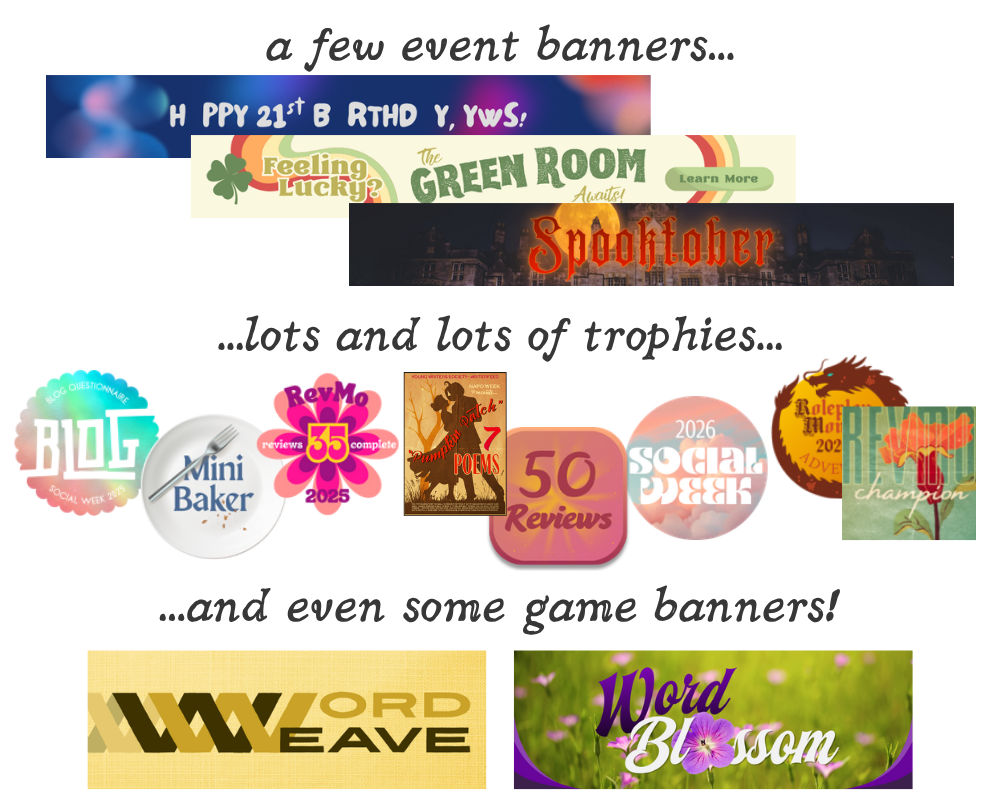
Canva is a free, user-friendly, browser-based graphic design program with a huge library of fonts, stock images, graphics, and editing tools. I first picked it up in 2019, when it was a bit more clunky and lacking in features; these days, it’s a robust and powerful program. Here are some of the things I’ve made with it!

Whether it’s cover art, a profile banner, or a promotional ad for your event, there are no monetary barriers between you and an awesome, unique, human-made graphic! This article will walk you through the process of how to create cover art to upload alongside your work.


John 14:27
Peace I leave with you; my peace I give you.
I do not give to you as the world gives.
Do not let your hearts be troubled
and do not be afraid.

she/her | team monkeys | #unclassified


User avatar
Gender Female
Points 24804
Reviews 532
Image

The first thing you’ll want to do is visit canva.com and make an account. For the purposes of this article, I’m running a free Canva account on my laptop’s desktop browser. You’re also welcome to check out the Canva mobile app, though I personally have little experience with it!

When you’re ready to create your cover art, follow these steps to get the ball rolling:

    1. Click the “Create” plus sign button in the top left corner.

    2. In the “Create a Design” window that pops up, choose “Custom size” on the left-hand side.

    3. Here, we’ll input WriterFeed’s preferred dimensions for Cover Art, which is 370 x 500 pixels. In other words, type “370” in the Width box and “500” in the Height box, and make sure “px” is selected under the Units dropdown.

    4. Click “Create New Design.”

    5. Go ahead and rename your file by clicking “Untitled design - 370 x 500” at the top of the screen.

You’re now ready to start putting your cover art together!
John 14:27
Peace I leave with you; my peace I give you.
I do not give to you as the world gives.
Do not let your hearts be troubled
and do not be afraid.

she/her | team monkeys | #unclassified


User avatar
Gender Female
Points 24804
Reviews 532
Image

Especially if you don’t have much experience with graphic design, using one of Canva’s Templates is a great way to help get you started.

1. If it isn’t open already, select “Templates” on the left-hand side.

2. In the search bar where it says “Search templates,” type “book cover” and enter.

3. Scroll through the search results. All templates that do not have a little golden crown icon in the bottom right corner are free to use. However, feel free to browse the Canva Pro options for inspiration!

4. Once you’ve found a template you like, click on it, and it will replace your empty page.

5. From here, everything is editable, from the text, to the images, to the color of the graphics. First, you’ll probably want to double-click on the text to type in your book’s title and your username instead.

For more on editing text, read on!
John 14:27
Peace I leave with you; my peace I give you.
I do not give to you as the world gives.
Do not let your hearts be troubled
and do not be afraid.

she/her | team monkeys | #unclassified


User avatar
Gender Female
Points 24804
Reviews 532
Image

Click “Text” on the left-hand side to add a new text box, or select one of the text boxes you already have. From there, at the top of the screen you can change font, text color, and text size, though for the latter you can also just drag the corners of the text box. (A quick tip for that: hold the Alt key on Windows or the Option key on Mac when doing this to anchor the center point of the text box.)

When looking for the right font, I recommend clicking the “Show filters” button next to the search bar to filter out all of the Canva Pro fonts.

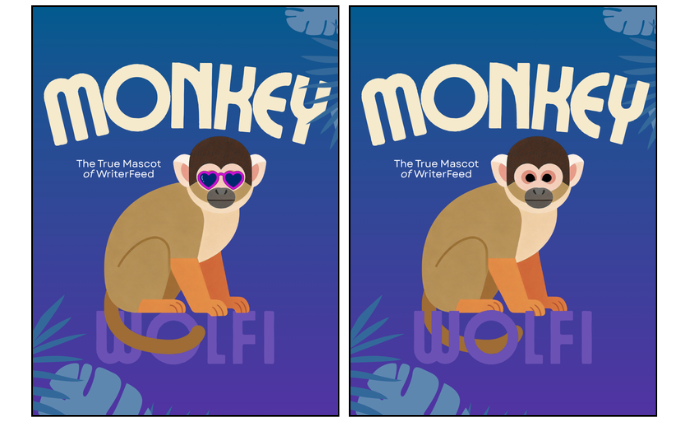
When you have a text box selected, try clicking “Effects” on the top right. Here, you can play around with different text styles. Effects like Drop and Glow can help the text stand out more easily against the background.

Speaking of which… do your best to keep your text legible! The first thing you should do is ensure there’s enough contrast between the text and everything behind it. On dark backgrounds, use white; on near-white backgrounds, pick a dark color.
John 14:27
Peace I leave with you; my peace I give you.
I do not give to you as the world gives.
Do not let your hearts be troubled
and do not be afraid.

she/her | team monkeys | #unclassified


User avatar
Gender Female
Points 24804
Reviews 532
Image

Most of Canva’s stock images are divided into two categories: Graphics and Photos. You can search through Canva’s library by clicking “Elements” on the left-hand side; from there, you can filter between Graphics, Photos, Videos, and more.

Unfortunately, you'll see that a lot of Canva’s free library of images is locked behind a paywall. Thankfully, you’re free to pull in assets from outside of Canva, whether it’s from Google Images or photos you’ve taken yourself. Click “Uploads” on the left-hand side to drop in custom files.

Here are some other free resources for license-free stock images:

Choosing Cohesive Graphics
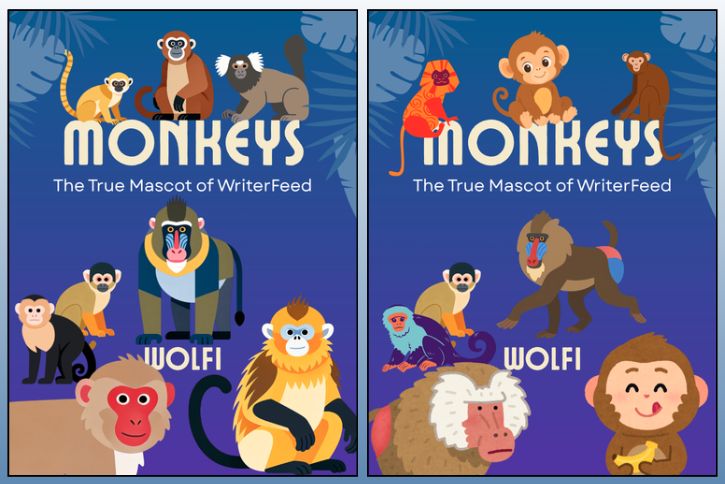
If your cover art involves multiple different stock elements, there’s a nifty way to ensure all Canva elements were at least created by the same artist. Take a look at the two cover arts below. Which one looks the most cohesive?

Image

If you guessed the one on the left, you’re right! All of those monkeys were rendered by the artist Tokunana, who has a distinctive style with bold colors, clean shapes, and minimal shading. By contrast, the monkeys on the right differ a lot in texture, color palettes, and realism, and it makes the overall cover art look like… well, like it was made with a bunch of random stock images!

Here, when I was looking for a style I liked, I first searched “monkey” under Elements and found a free asset that fit the bill. I hovered over the monkey and clicked the three dots that appeared, then clicked the small “View more by…” link, which took me to all of the artist’s uploads. Searching “monkey” here brought up all the various monkeys this artist has created, from capuchins to mandrills!

Slop Disclaimer
Canva's Elements library is no stranger to AI slop. A lot of the time, the element will be labeled as such (viewable by clicking the three dots that appear when hovering over the element) but a lot of the time it won't. Some of the things I do to vet an element's credibility include zooming in on the element to see if I notice any weird blurred/warped parts, and checking the other uploads by the artist to see if there are any other AI tells. It's not foolproof, but I do my best! Stay vigilant, fellow human!
John 14:27
Peace I leave with you; my peace I give you.
I do not give to you as the world gives.
Do not let your hearts be troubled
and do not be afraid.

she/her | team monkeys | #unclassified


User avatar
Gender Female
Points 24804
Reviews 532
Image

When you’re juggling different text boxes, images, and effects, it can become important to ensure they’re properly layered on top of each other. With any element selected, click “Position” in the top right. Click the “Layers” tab to see how all the elements are ordered. Elements at the top will appear above elements below them. Click and drag to change the layer order.

Image

Alternatively, use shortcuts (ctrl [ or ctrl ] on Windows or cmd [ or cmd ] on Mac) to quickly bring elements up or down in their layering order.

Under “Arrange,” you can find other helpful tools that will help you center elements and align them to different parts of the page.
John 14:27
Peace I leave with you; my peace I give you.
I do not give to you as the world gives.
Do not let your hearts be troubled
and do not be afraid.

she/her | team monkeys | #unclassified


User avatar
Gender Female
Points 24804
Reviews 532
Image

The best way to get the hang of Canva - and sharpen your graphic design skills - is to experiment! Click around, try different things, and see what you can do. Be mindful, though: Canva has a lot of AI tools that I recommend steering clear of.
@niteowl wrote:Avoid the stupid sparkles.

Anyway, if you’re afraid to “mess up” what you already have going, simply duplicate your page (there’s a little button at the top right) and keep going! Sometimes I’ll have some crazy idea but I’m not sure if it’ll work until I see it. I’ll duplicate the original “safe” option and then go all out on the second page, knowing my original work is there to fall back on.

Image


Lastly, one of the most valuable tools in visual art is a pair of fresh eyes. If you’re feeling stuck, step away; do something else for a bit, or maybe wait until the next morning. When you reopen the project, you’ll notice weaknesses you didn’t see before, or maybe it’ll be better than you remembered. If you’re running low on time and don’t have the luxury to wait for an eye reset, ask a friend to critique your draft!
John 14:27
Peace I leave with you; my peace I give you.
I do not give to you as the world gives.
Do not let your hearts be troubled
and do not be afraid.

she/her | team monkeys | #unclassified


User avatar
Gender Female
Points 24804
Reviews 532
Image

When you’re ready to export your final cover art, click “Share” in the top right corner and then “Download.” If you have multiple pages, you might want to make sure you have the right one selected when downloading; otherwise, Canva will export all pages into a zip folder.

Great job - you just created your own cover art! Keep practicing and don't be afraid to ask for advice.

Have your own Canva/graphic design tips to share, or want to show off the cover art you've made? Feel free to post in this thread!
John 14:27
Peace I leave with you; my peace I give you.
I do not give to you as the world gives.
Do not let your hearts be troubled
and do not be afraid.

she/her | team monkeys | #unclassified


trust your heart if the seas catch fire (and live by love though the stars walk backward)
— E.E. Cummings